
Table of Contents
01 - Introduction
I experienced two WordPress bugs this year that resulted in my becoming negative again about WordPress. I became negative once before , so I was aware of other blogging platform options. In the middle of July, I decided to look at the other options again.
I initially thought about using the Ghost platform. However, the Ghost platform uses a database backend, something I desired to get away from. The last time I became negative about using WordPress, I played around with Hugo , so I decided to give that another look.
02 - Reacquainting Myself with Hugo
I began reacquainting myself with Hugo by reviewing some of the documentation . I didn’t completely understand the concept of page bundles , but thanks to Pawel Grzybek making his site available on GitHub , I was able to better understand the concept.
Next, I wondered how I was going to migrate my blog from WordPress to Hugo. I read over a handful of posts about migrating from WordPress to Hugo and I learned that there were apps and WordPress plugins that could be used to perform the migration. I wasn’t ready to perform the migration because I first wanted to find a theme to use, so I generated PDFs of some of the migration posts I came across for later reference.
When I first tried Hugo, I used the book Hugo in Action as a tutorial to learn how to use it. However, going through the book again would have been quite time consuming and the material in the book was dated; e.g. the concept of page bundles wasn’t covered. I wanted a tutorial that was quicker and more current, something like a video. I searched quite a bit, but every tutorial I encountered was outdated; e.g. created years ago, so no mention about page bundles.
Then I came across the The Static Site Guide site created by Matt Cone . While the Static Site Guide also didn’t cover page bundles, I did find the tutorial helpful. Going through the part of the tutorial covering Hugo gave me more confidence to continue with my plan to migrate my blog from WordPress to Hugo.
03 - Finding a Theme
One of the issues I experienced when I tried other blogging options in the past was finding a theme. This time I had better success.
Initially I thought I was going to use the Hugo PaperMod theme. I installed the theme under my Hugo site folder and then I commenced to create all of the pages I was using on my WordPress site and four of my posts in markdown format. I manually created the pages and posts for testing purposes and to refresh my memory about using markdown format.
The Hugo PaperMod theme offered the option of three different layouts for the home or landing page. I desired to use the hero layout so that I could use an image to represent the name of my blog. Unfortunately, the theme only allowed the use of a URL link to an external image to use in the hero layout. I thought that limitation was really odd. I even searched the issues section on the Hugo PaperMod theme GitHub page and someone asked about using just an image file, but the question was left unanswered.
I decided to begin searching for other theme options and I discovered the LoveIt theme. I really liked the LoveIt theme because of the information provided on posts; e.g. date published, number of words, time to read, and number of views. I downloaded the LoveIt theme only to discover that the latest versions of Hugo that the theme would work with was 0.125.0 - 0.145.0. At the time, Hugo was up to version 0.164.0. I continued looking for a another theme.
I then discovered a few forks of the LoveIt theme. The fork that seemed to be the most currently active as far as development was the DoIt theme. However, I thought a bit about what had happened to the LoveIt theme. Perhaps development would stop or slow down on the DoIt theme as well. I thought maybe a paid theme might be a better option, so I continued my search for a theme.
I spent quite a bit of time looking at different themes and then I found two themes created by Anvod Studio that piqued my interest. The themes that interested me were Mria and Shodo . I decided on the Shodo theme because of the top portion format of the landing or home page. I later learned that the top portion was the hero area .
I quickly learned that changing themes under Hugo would require changes to the front matter because different themes use different front matter parameters. So I had to redo quite a bit of the front matter in the page and post markdown documents that I manually created while using the Hugo PaperMod theme.
After completing the front matter changes in the page and post markdown documents, I began initial customization of the Shodo theme based on how I wanted my site to look. There were some features of the Shodo theme that I didn’t need or want for my blog. I customized the Shodo theme just enough so that I could begin testing how the page and post markdown documents appeared using the Shodo theme. Once I was happy with how things looked, I was ready to migrate the remainder of my blog from WordPress to Hugo.
04 - Exporting and Converting My WordPress Posts to Markdown Format
During my research on migrating from WordPress to Hugo , I learned about an app titled WordPress to Hugo Static Site Migrator . I downloaded the app and followed the instructions on the WordPress to Hugo Static Site Migrator GitHub page.
The WordPress to Hugo Static Site Migrator app worked fairly well, but I spent hours changing quite a bit of the migrated posts. The app developer used the Hugo PaperMod theme to migrate a WordPress export. So that meant quite a bit of the front matter needed to be changed so that the markdown documents would work for the Shodo theme I was using.
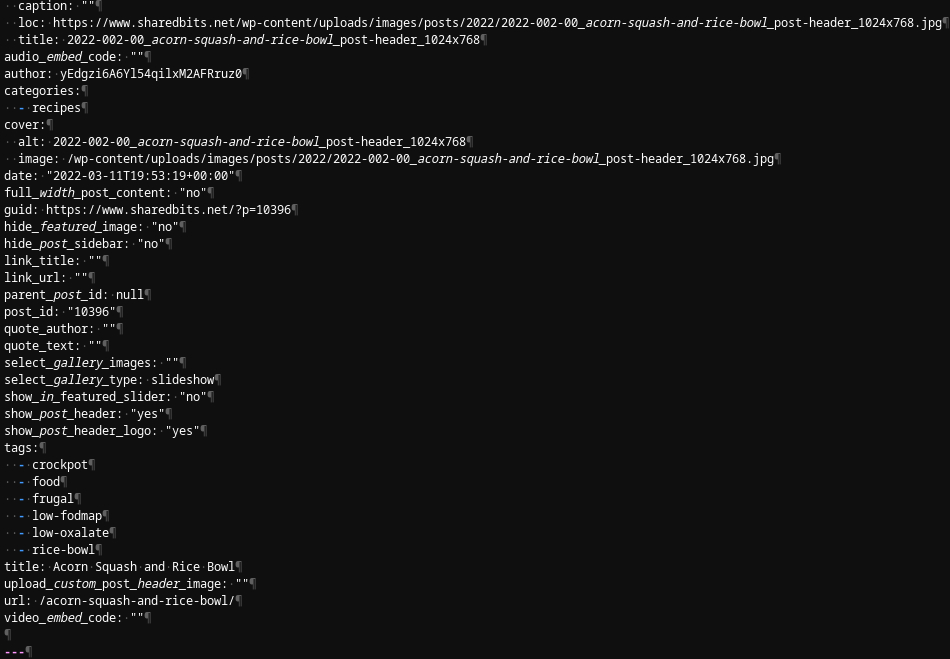
All of the images were referenced in the markdown documents using the WordPress folder structure from which they were exported, so that all had to be changed as well.

Since I had to edit the image links anyway, I also decided to go ahead and finish renaming all of my image files for posts created prior to 2023.
The Shodo theme offers image gallery functionality, but you must write it as shortcode in a markdown document . I desired to use the image gallery functionality, so it took some time to create the shortcodes as desired.
Another issue I encountered with the migration results of the WordPress to Hugo Static Site Migrator app was that tables didn’t migrate correctly. Thankfully, I didn’t have that many tables so it wasn’t a big issue, but correcting the issue did take some time.
05 - More Customization of My Chosen Theme
After days of work, I finally finished the cleanup of the markdown documents. My next task was to continue customizing the Shodo theme to my desire. Removing some of the other parts of the theme in the beginning resulted in quite a bit of empty space on the left and right areas of the landing/home page, as well as when displaying pages and posts. The first letter of the first sentence in a page or post was large and colored yellow. I wanted regular text. I solved all issues by changing the CSS provided by the Shodo theme.
I didn’t like the way the archive and tag pages were organized, but I couldn’t figure out how to change the organization. I also desired to display the update date (if applicable), the post ID, and the word count as part of the data provided at the top of a post. However, I couldn’t figure out how to obtain the data. Therefore, all three issues were on the list of complaints/suggestions I sent to the developer once I completed the WordPress to Hugo migration.
My next task was to look into setting up SEO or search engine optimization. I read in one or more migration posts about creating something to get SEO to work on Hugo. However, I began looking at the HTML code of the Shodo theme and I discovered that it appeared that the developer had already taken care of that. I emailed the developer about SEO and my observations of the Shodo HTML code and he confirmed that he had already provided SEO within the theme HTML. That was nice because it was something I didn’t have to do.
06 - Official Migration
On September 29, I was ready to officially migrate my blog from WordPress to Hugo by creating the necessary components under my Opalstack account for Hugo, uploading the contents of the Hugo Public folder to the appropriate area under my Opalstack file area, turning off my WordPress site and then turning on my Hugo site. I thought the entire process went without an issue. However, I later learned that there was one more thing I needed to take care of.
I have used AWStats to provide analytics data for a number of years, including my time with Opalstack. When I logged into my AWStats web app two days later, I discovered that AWStats wasn’t recording anything. I started looking around at the files where I had AWStats installed and I discovered that I needed to change the site name in the awstats.conf file. After making the change, AWStats began recording analytics data.
While going through my posts to add alt text to most of my post images in October, I discovered that some of my post images were not included with the migration results of the WordPress to Hugo Site Migrator app.
07 - Conclusion
I spent hours contemplating, researching, cleaning up the markdown conversions of my posts, and customizing the Shodo theme. I almost quit my plan to migrate my WordPress blog to Hugo two or three times. Now that the migration is behind me, I’m so glad I didn’t give up and all of the time I spent was worth it.
I will no longer get Wordfence notifications about WordPress or plugins needing to be upgraded. Because I decided not to have comment functionality after migrating my blog to Hugo (most of the comments I received were spam), I don’t have to worry about spam. I also don’t have to worry as much about security as I did running WordPress. I enjoy creating pages and posts in markdown format and doing all of my work and testing locally.
A big thank you to Sean F., a member of the Opalstack tech support staff, who patiently answered all of the questions I had about getting Hugo up and running on Opalstack. Sean’s input was a big help in my getting Hugo running on Opalstack.
2026-006